
Set up Google Sign-In
Google Sign-In lets guests tap a Google button instead of filling in your portal's form or entering a voucher. It's configured in two places: once for the whole install (the OAuth app credentials), then per portal (whether that portal offers it).
Superadmin only
The platform-wide Google configuration lives under Settings → Google Sign-In, visible to superadmins only.
1. Create a Google OAuth client
In the Google Cloud Credentials console:
Create or select a project.
Configure the OAuth consent screen (External), adding the
email,profile, andopenidscopes.Under Credentials, click Create Credentials → OAuth client ID → Web application.
Add the Authorized redirect URI - copy it from Atrium's Settings page rather than guessing it, and add it exactly as shown:
https://<your-domain>/auth/google/callback
One redirect URI for the whole install
There's a single callback for every portal and tenant, not one per portal - Google requires an exact, pre-registered redirect URI per OAuth client, and a different one per portal slug isn't practical. Atrium works out which portal a guest came from internally, so you only ever register this one URI.
2. Add the credentials to Atrium
Copy the generated Client ID and Client Secret into Settings → Google Sign-In, and turn it on.
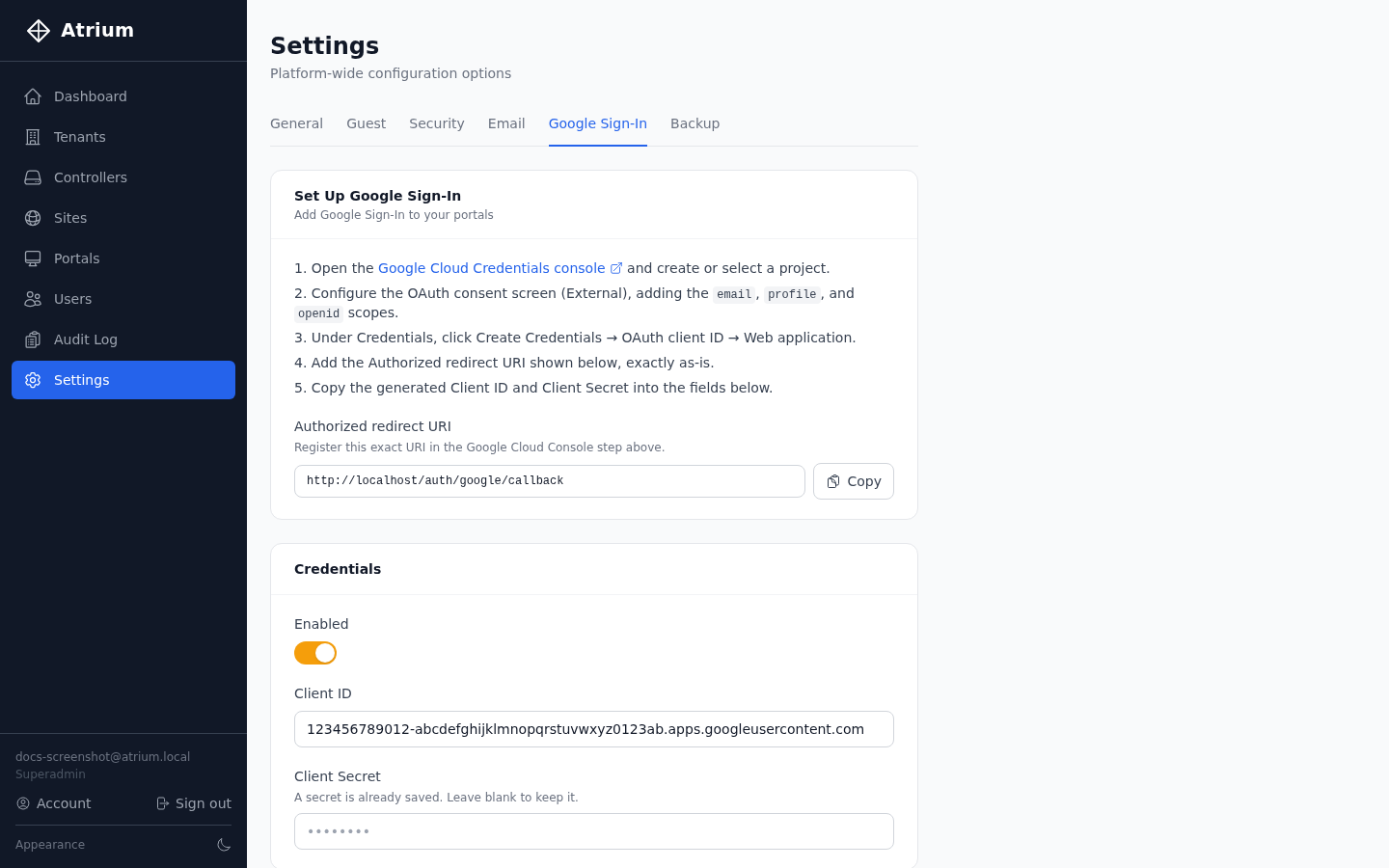
The Client Secret is encrypted at rest and never sent back to the browser once saved - the field just shows whether one is already configured.
3. Turn it on per portal
Google Sign-In is off by default for every portal, even once the platform credentials are configured. Enable it per portal under Portals → [your portal] → Edit → General:
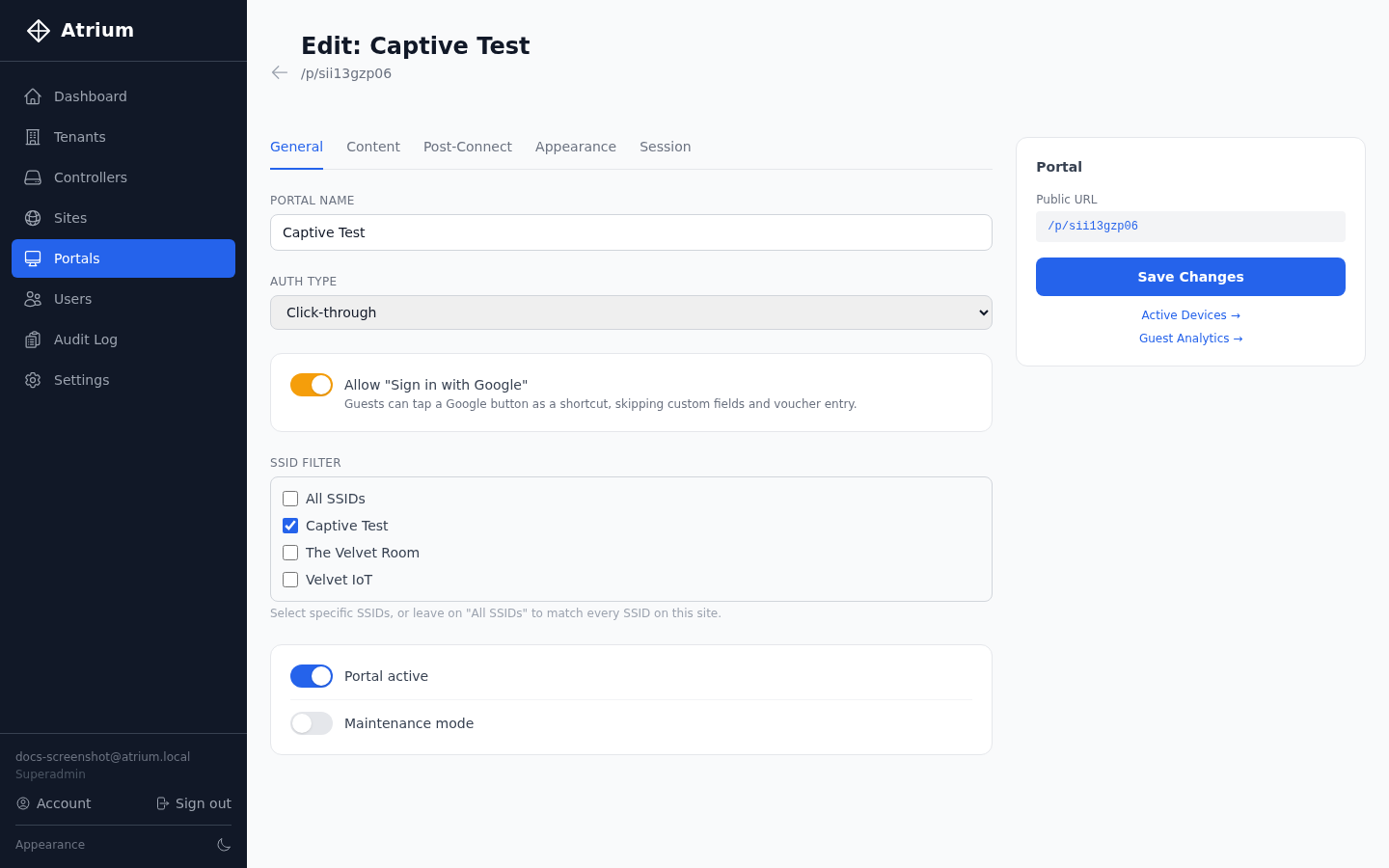
Guests on that portal now see a Google button alongside the normal form - tapping it skips custom fields and voucher entry and goes straight to a connected session. If a guest's Google sign-in fails or is cancelled, they fall back to the regular form automatically.